A tour of the screens

Pick a capability and click the steps; click an image to enlarge it. Screens are shown with sample data from the Turkish interface; the application is available in TR, EN, DE and FR.
SIGMAX · CLIENT
CLIENT — See your clients
CLIENT · Explore

Screens are shown with sample data from the Turkish interface; the application is available in TR, EN, DE and FR.
CLIENT · Manage

Client and Program Management

Open the client, set up its contract and program, and follow progress from a single page.
CLIENT — See your clients
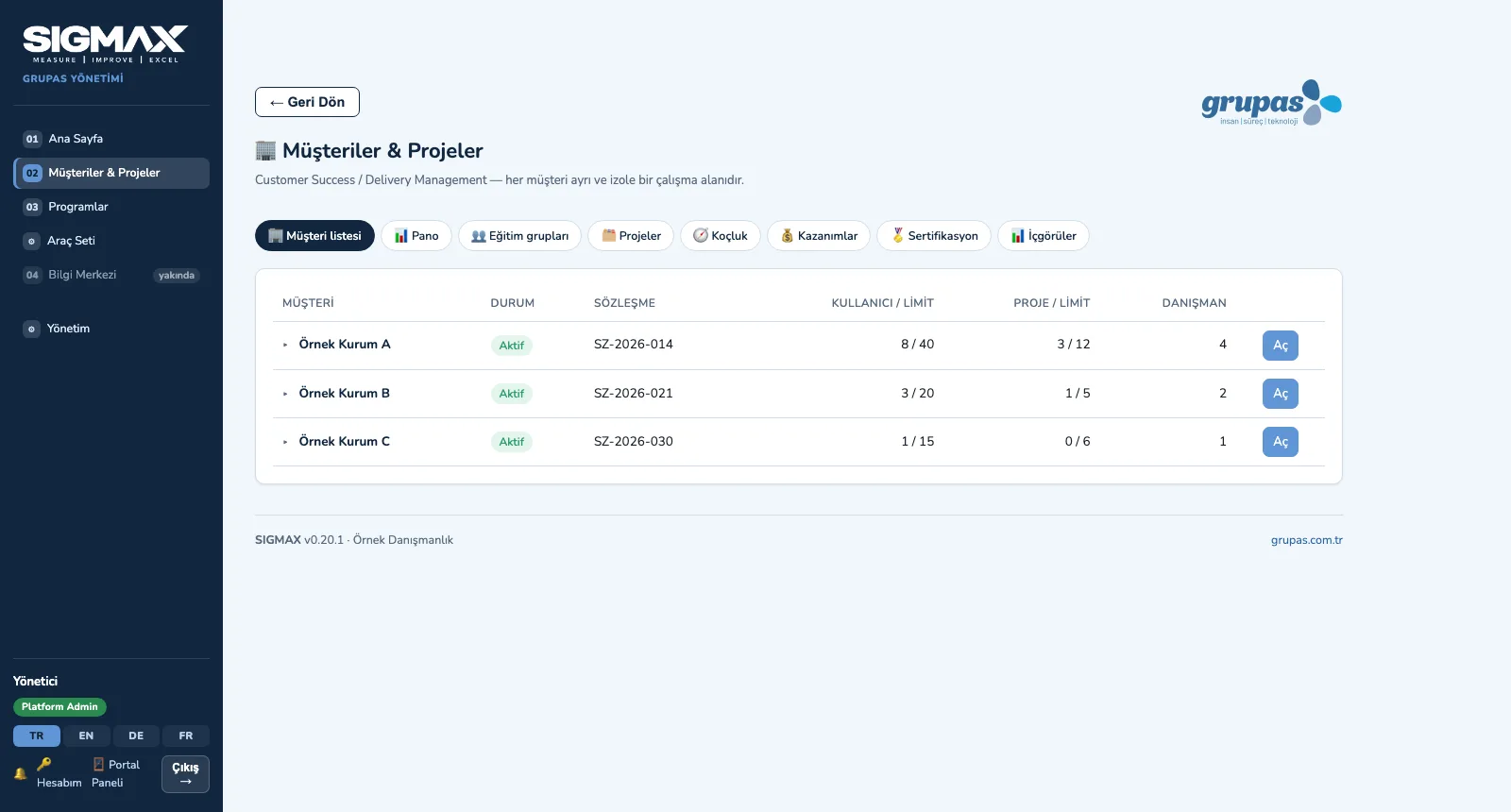
1. See your clientsAll clients in one list with status, contract, user / project limits and number of consultants; each is an isolated workspace.
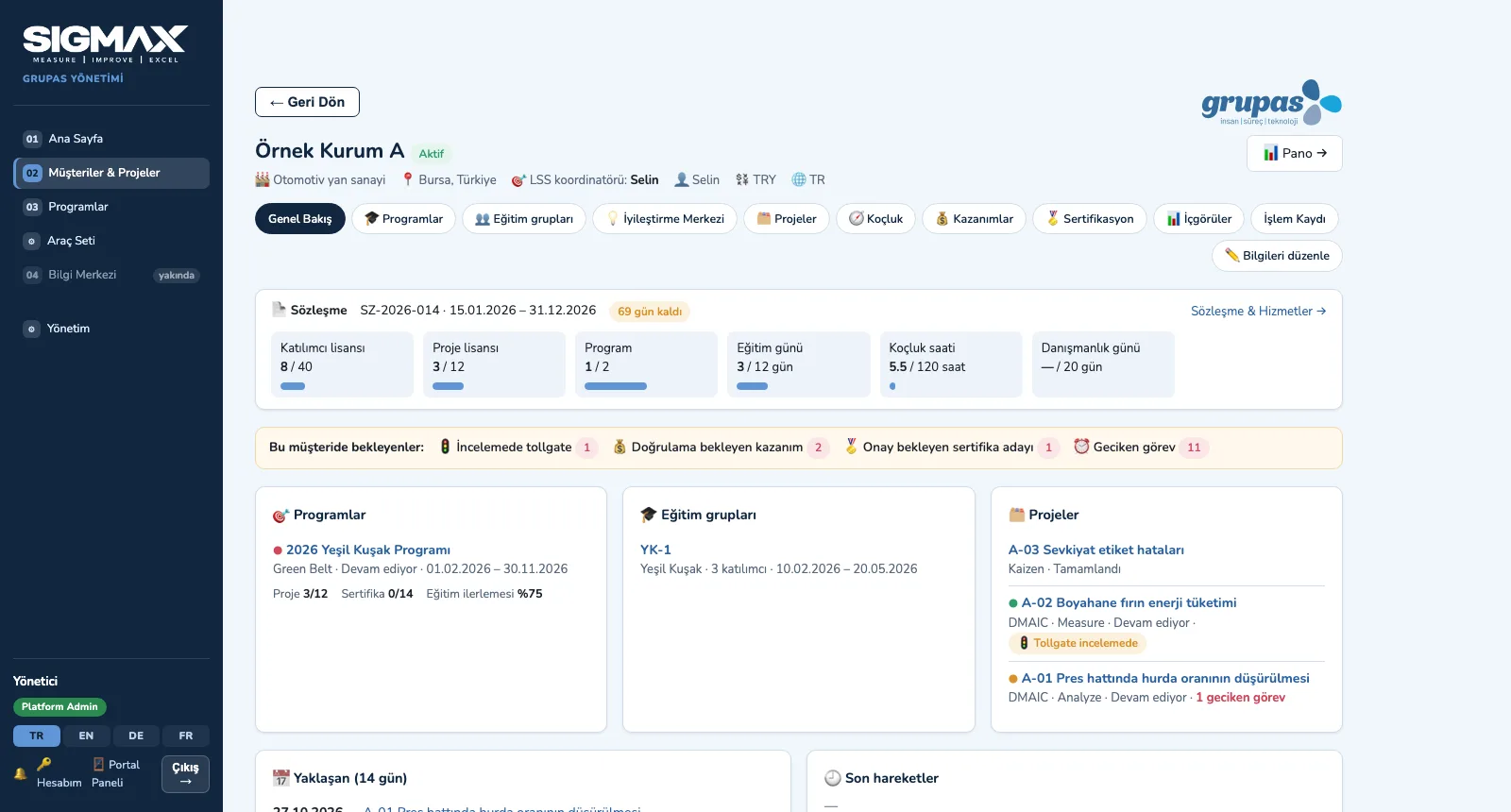
CLIENT — Open the overview
2. Open the overviewContract usage (licenses, training days, coaching hours), pending approvals, programs, cohorts and projects on one page.
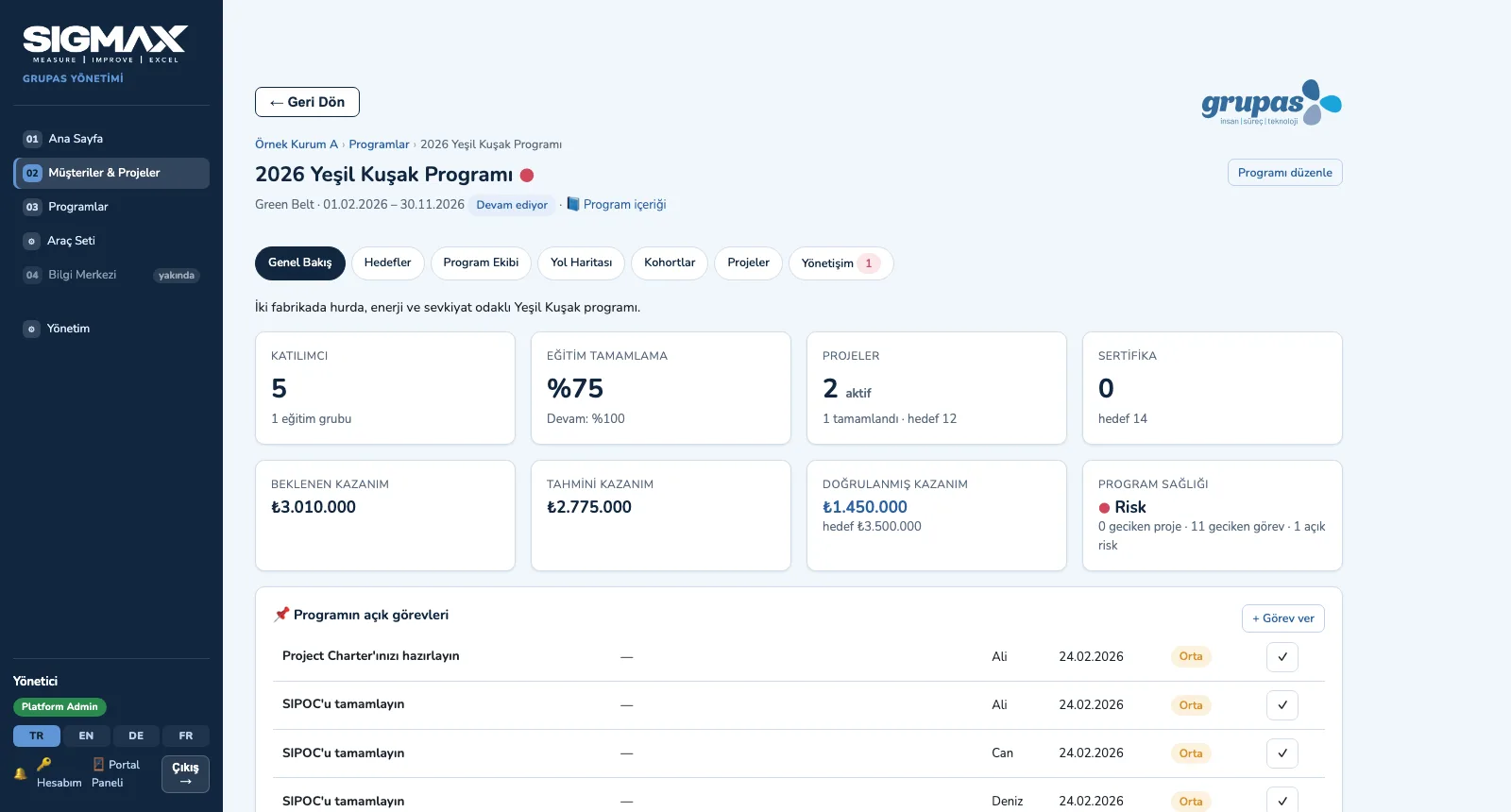
CLIENT — Manage the program
3. Manage the programParticipants, training completion, projects, certificates, expected / validated benefits and program health; objectives and team.
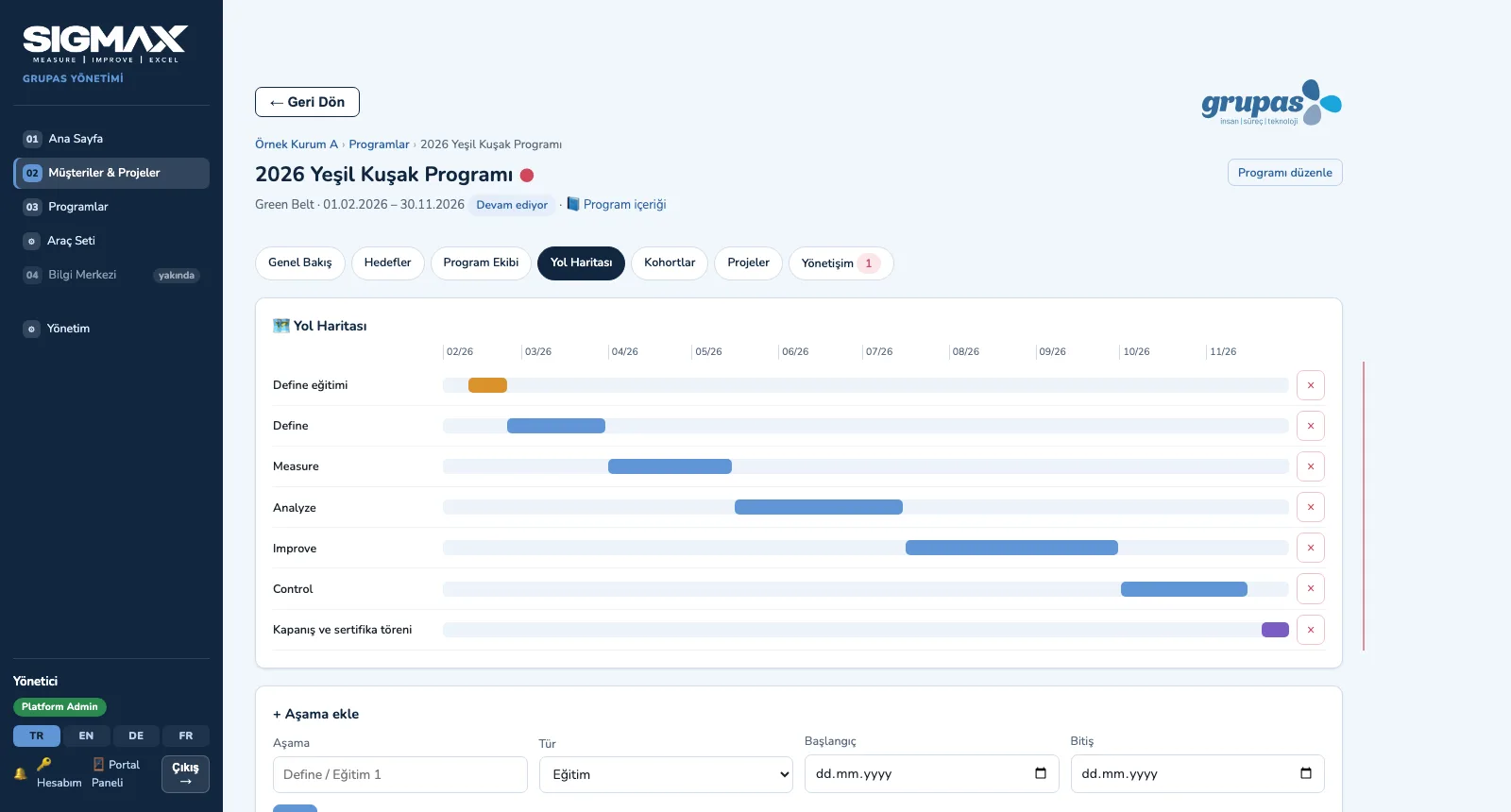
CLIENT — Roadmap and governance
4. Roadmap and governancePlan training and project phases on a timeline; steering meetings, decisions and risks are recorded under the program.

CLIENT · Explore

LEARN · Train

Academy and Cohorts

Choose the program, prepare the curriculum, run the cohort.
LEARN — Choose a standard program
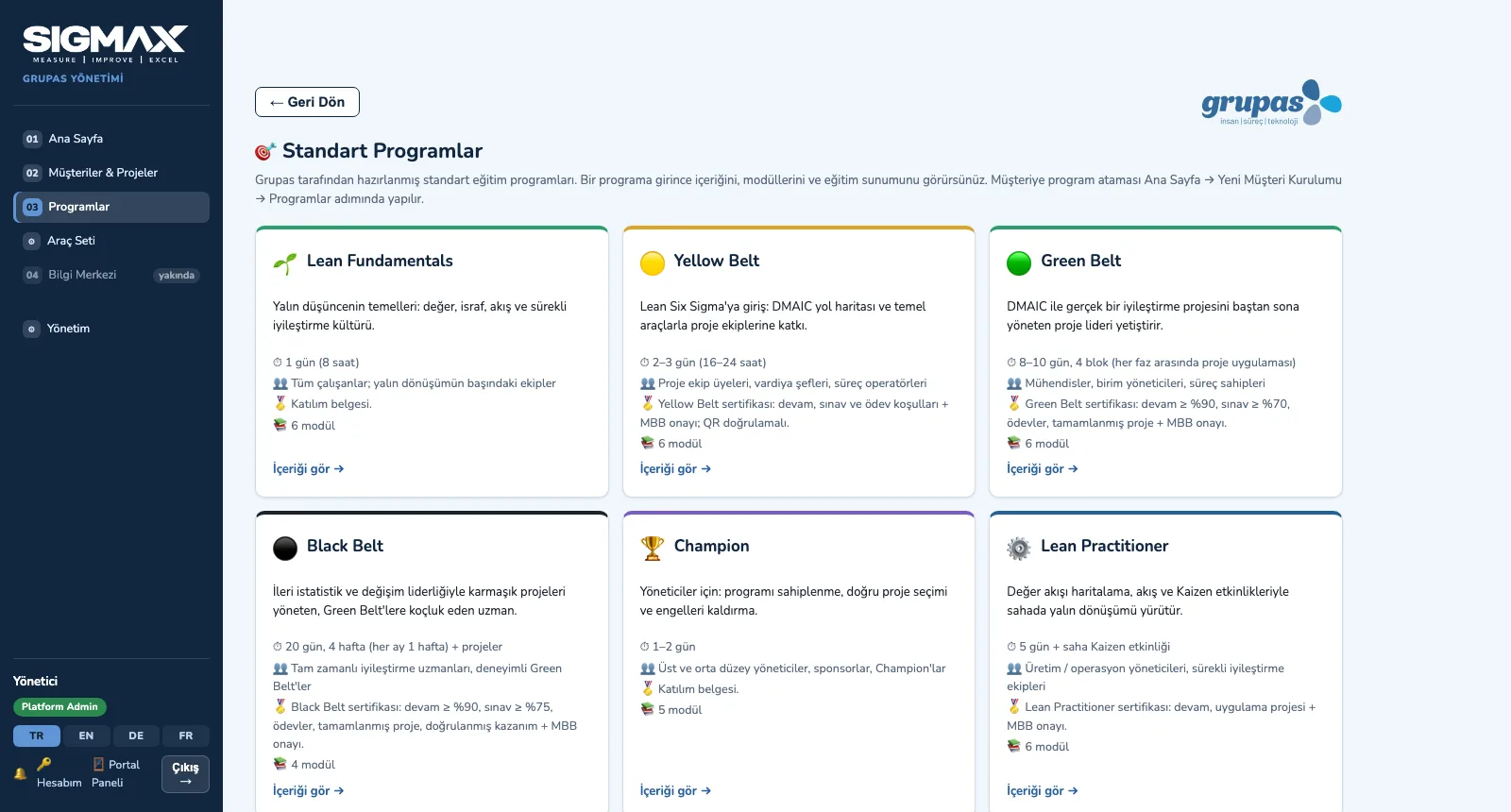
1. Choose a standard programNine standard programs are ready, each with duration, audience, certification rule and number of modules.
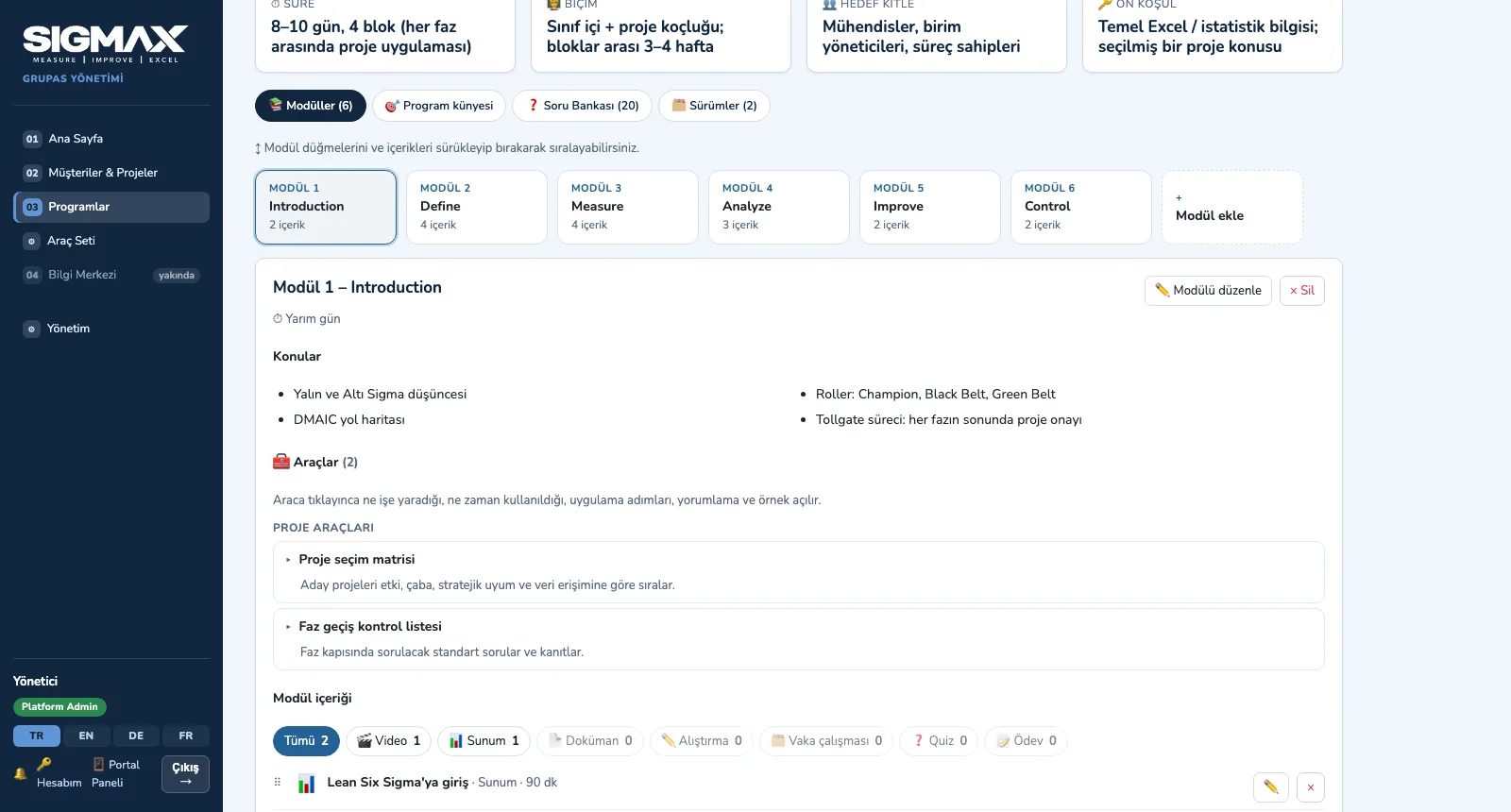
LEARN — Edit the curriculum
2. Edit the curriculumModules, topics, tools and content; drag-and-drop ordering, versions and question bank.
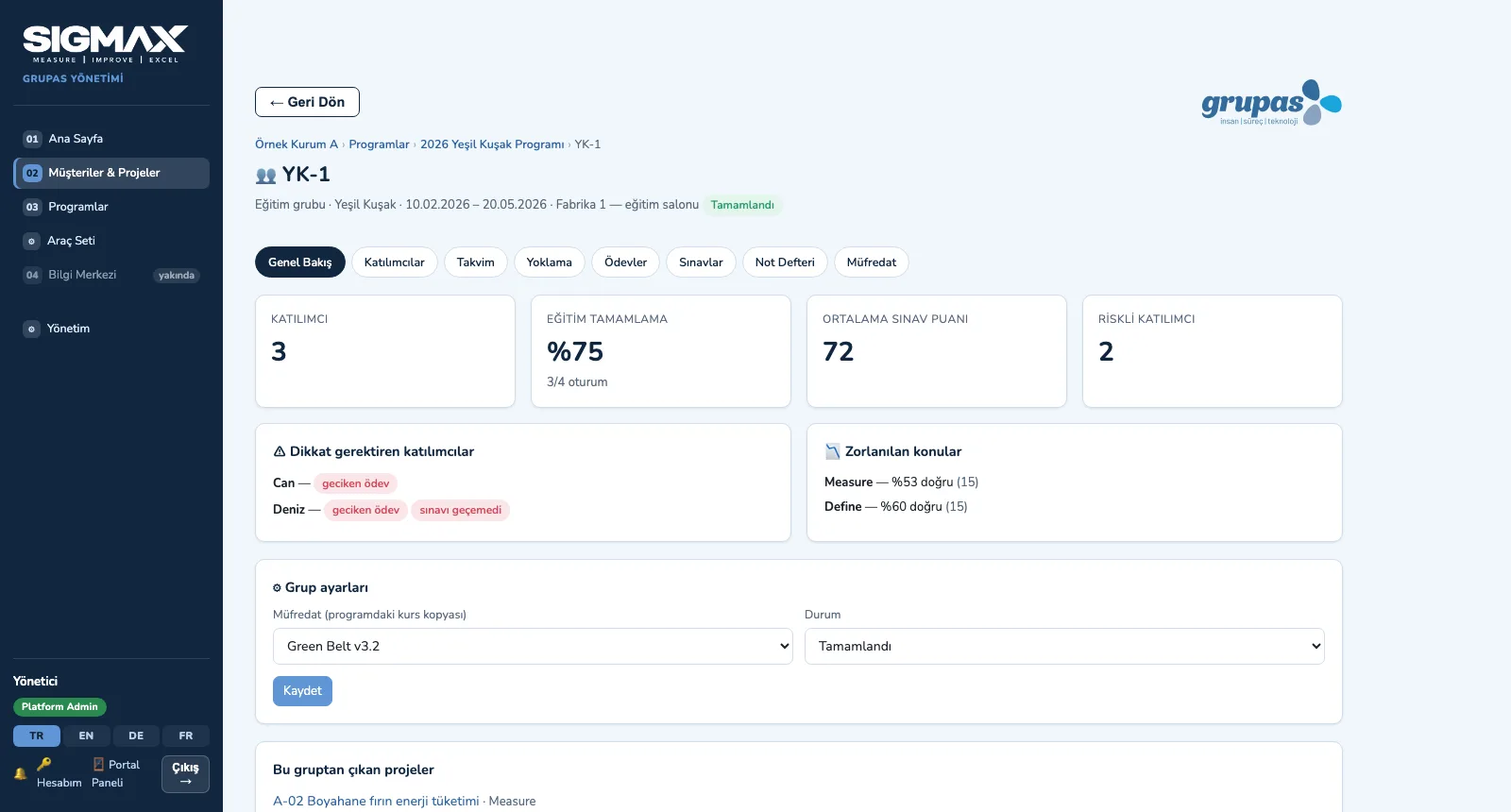
LEARN — Run the cohort
3. Run the cohortTraining completion, average exam score, at-risk participants and difficult topics; schedule, attendance, assignment and exam tabs.
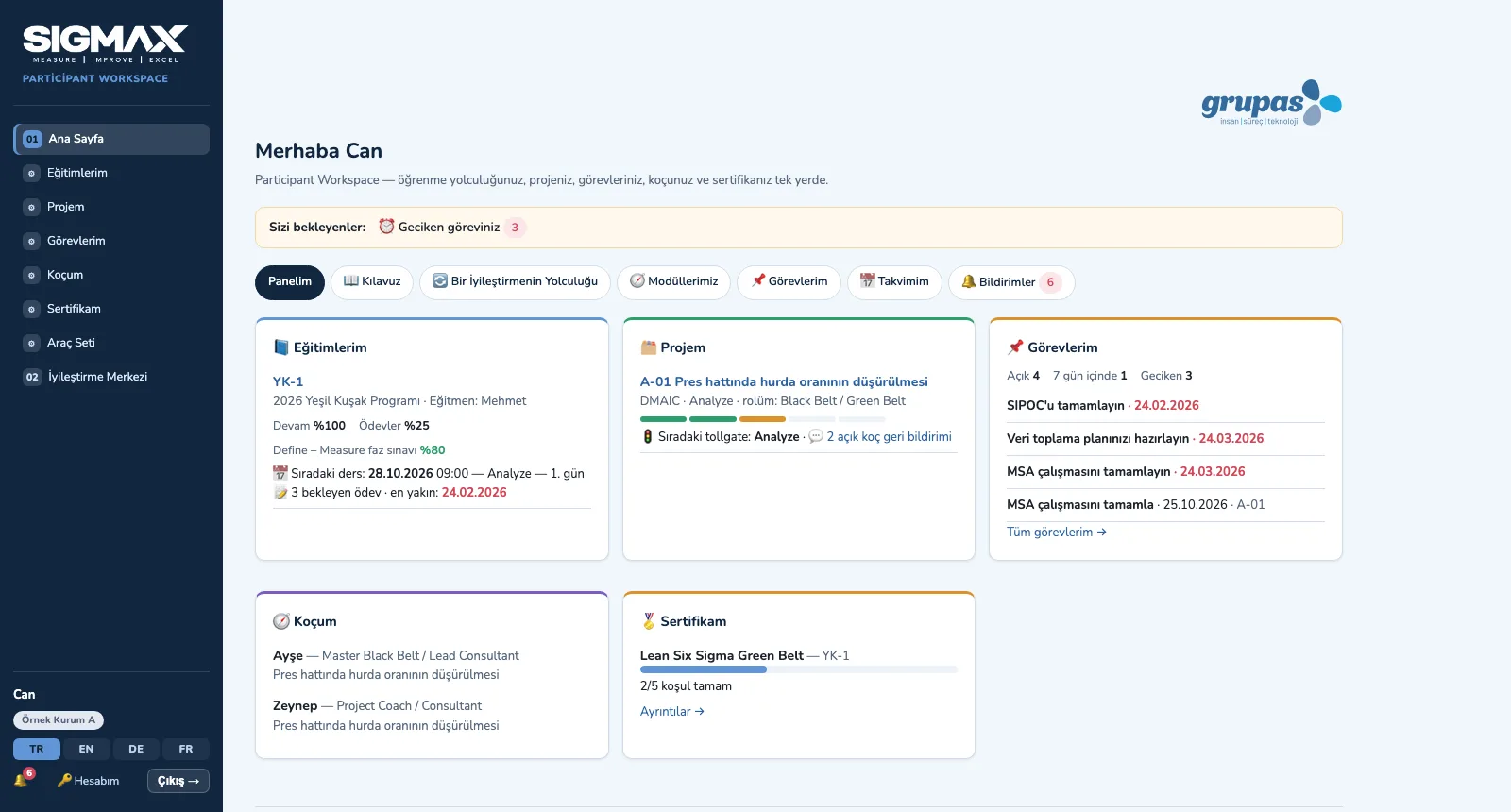
LEARN — Participants in their own space
4. Participants in their own spaceMy training, my project, my tasks, my coach and my certificate on one dashboard.

LEARN · Explore

IDEAS · Select

Improvement Hub

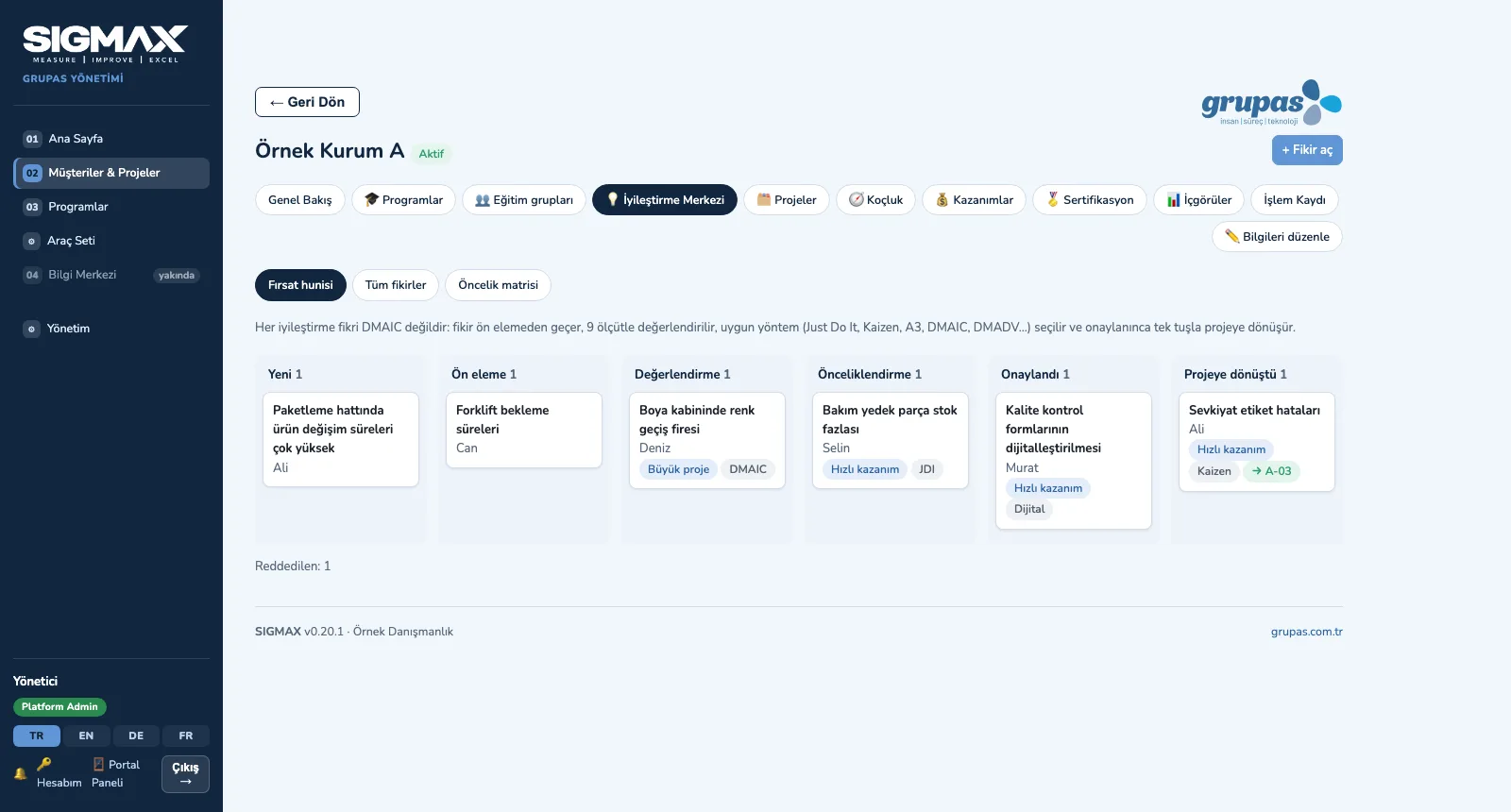
Collect the idea, score it, prioritize, convert it to a project.
IDEAS — Follow ideas in the funnel
1. Follow ideas in the funnelWhich stage each idea is at, who submitted it, its priority and method — in one kanban view.
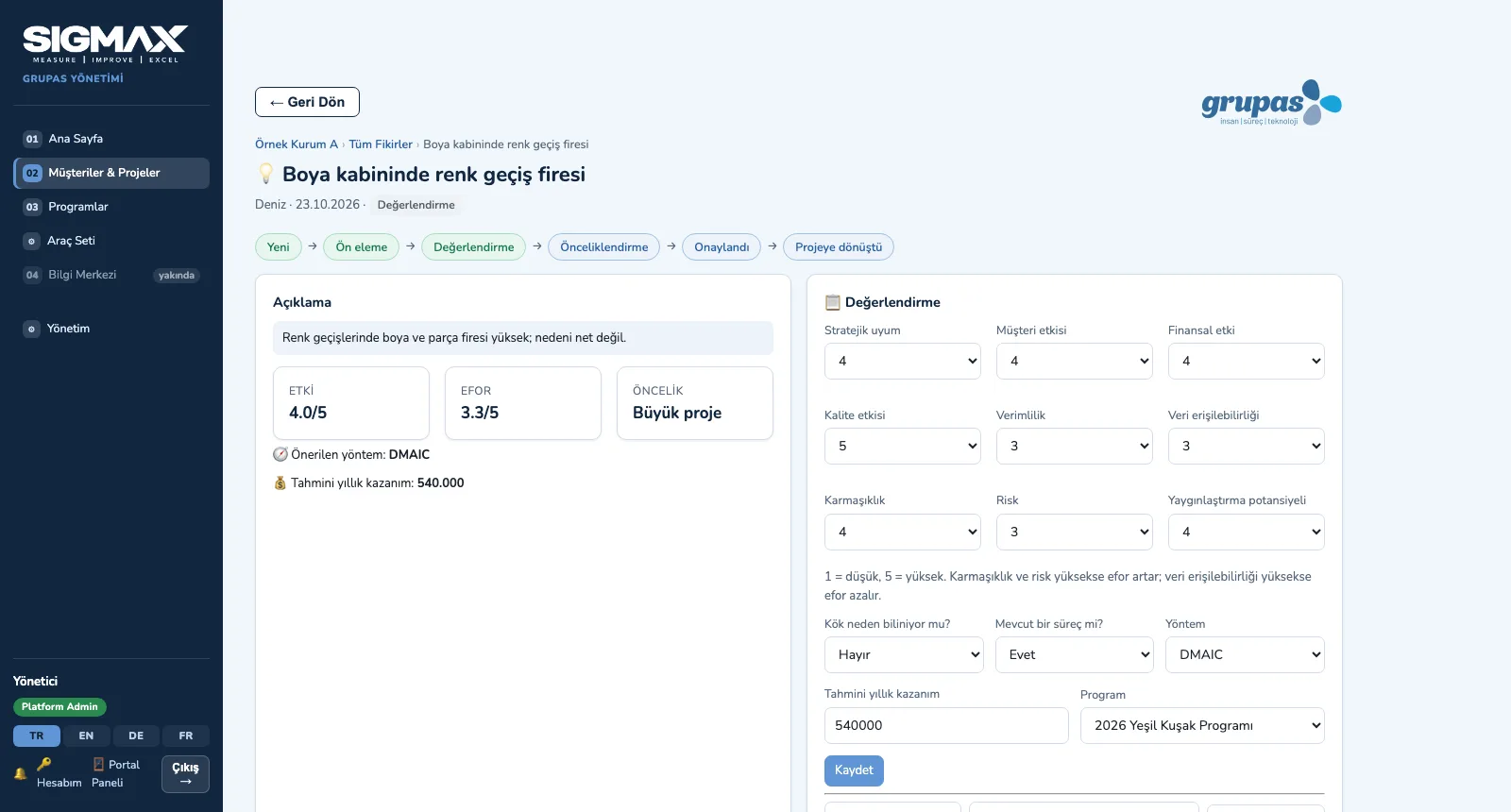
IDEAS — Assess on 9 criteria
2. Assess on 9 criteriaAs scores are entered, impact, effort, priority zone and suggested method are calculated; estimated annual benefit and program are linked.
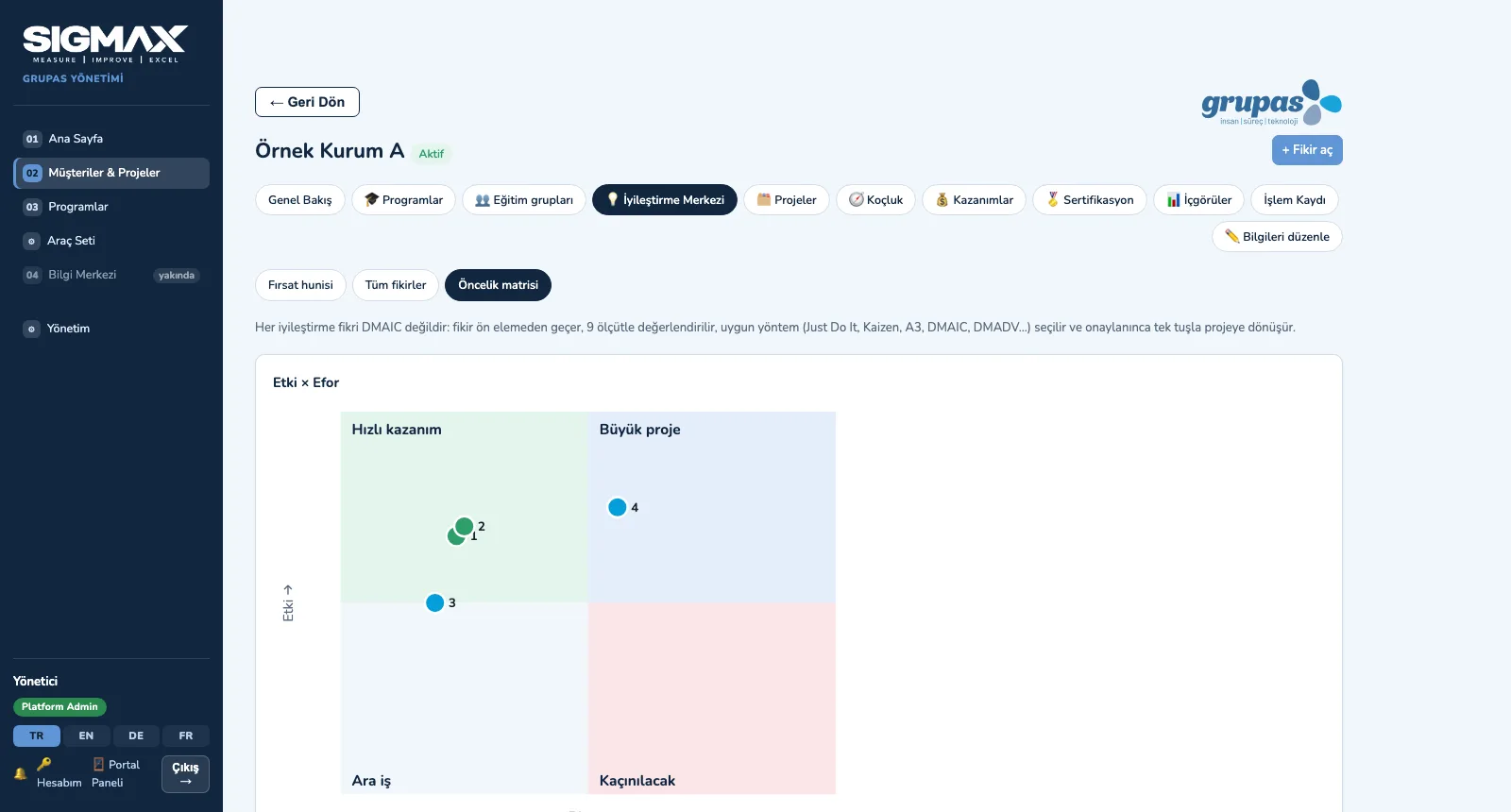
IDEAS — Prioritize
3. PrioritizeOn the Impact × Effort matrix each idea falls into one of four zones: quick win, major project, fill-in, avoid.

IDEAS · Explore

DMAIC · Run

Project Room and Tollgates

Open the project, fill in the phase tools, pass the tollgate.
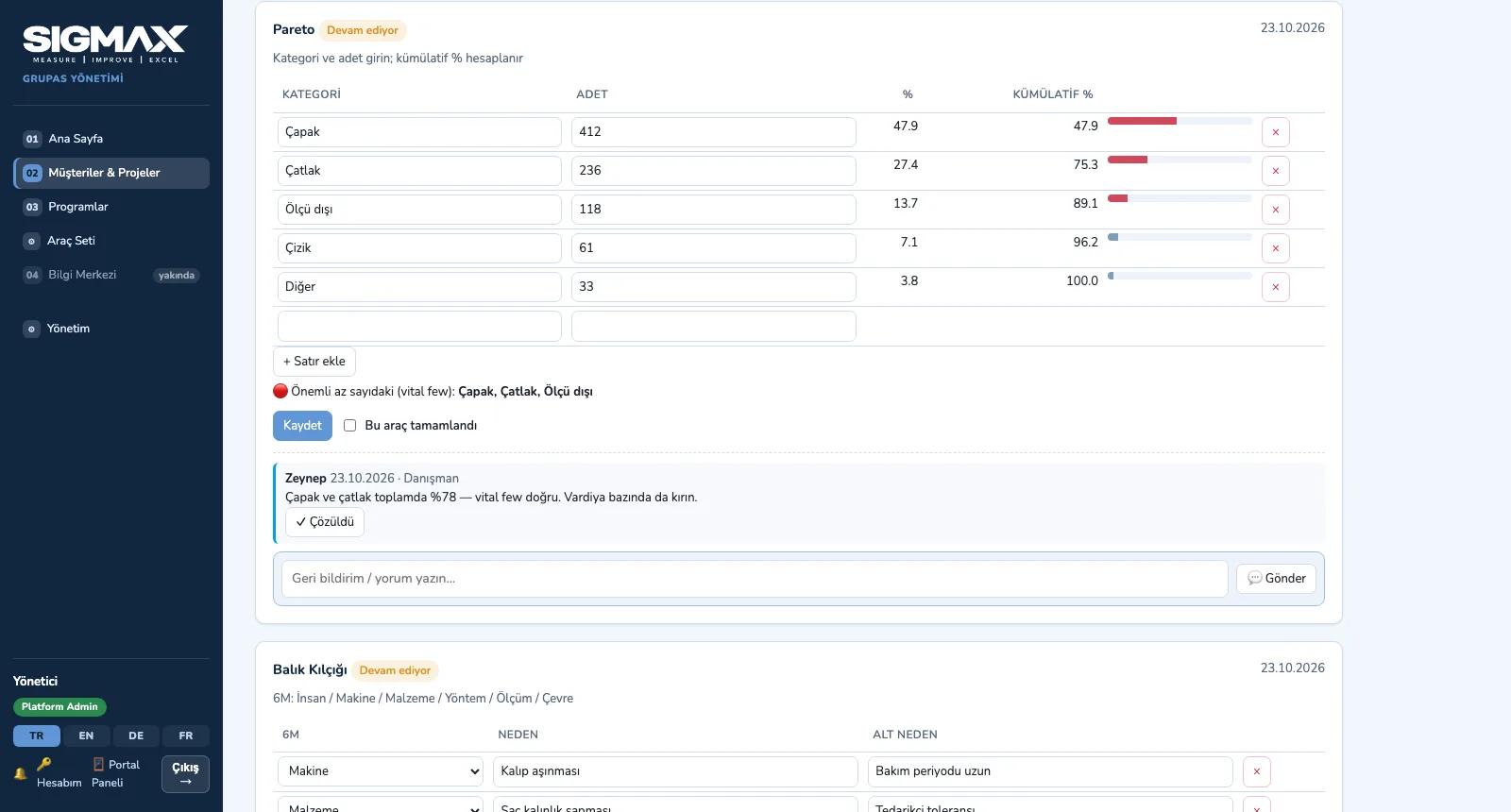
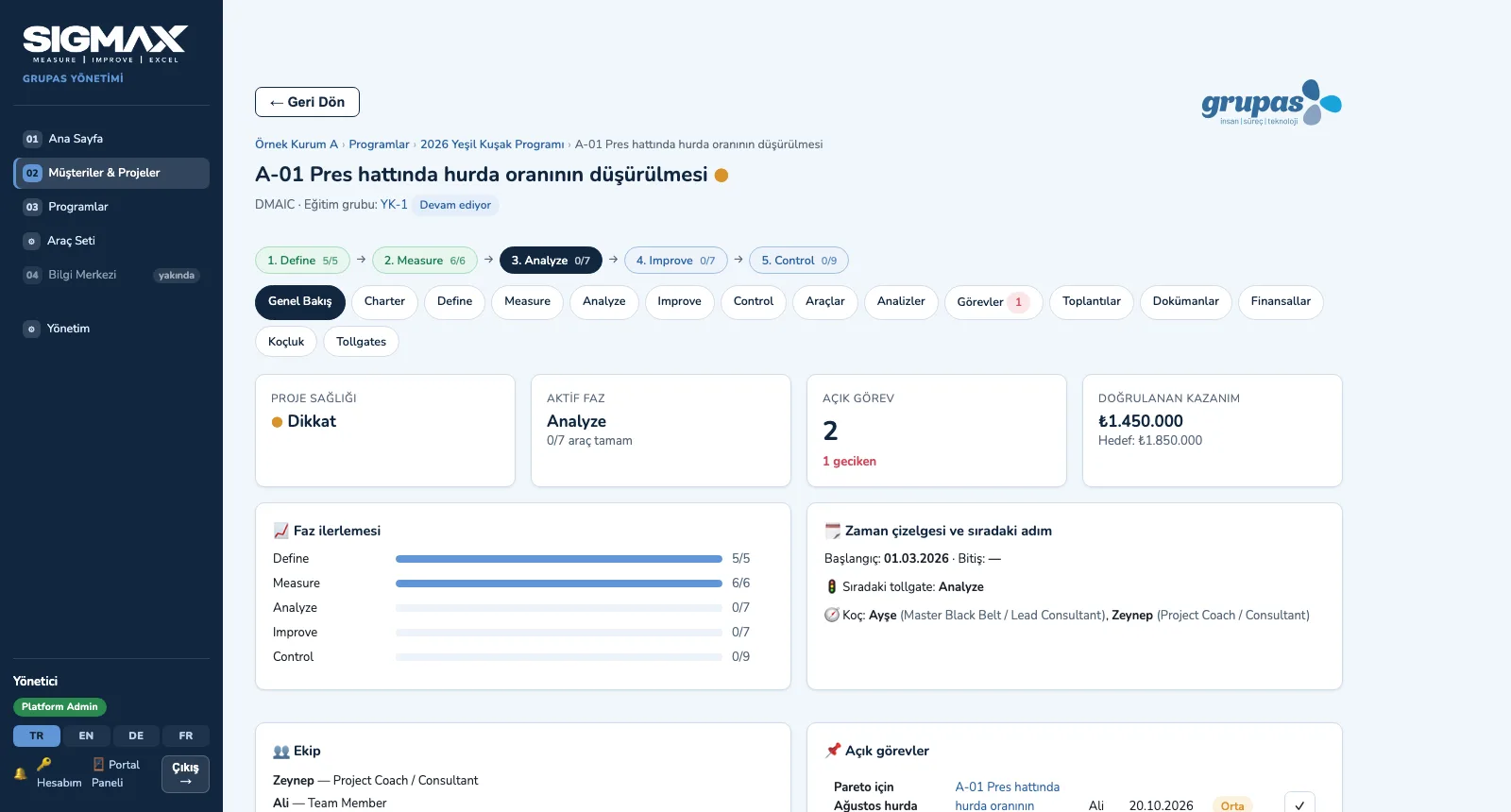
DMAIC — Open the project room
1. Open the project roomProject health, active phase, open tasks, validated benefit, phase progress and the next tollgate on one screen.
DMAIC — Fill in the phase tools
2. Fill in the phase toolsEach phase has its tools; Pareto calculates the cumulative % and the vital few, and coach comments sit under the tool.
DMAIC — Submit to the tollgate
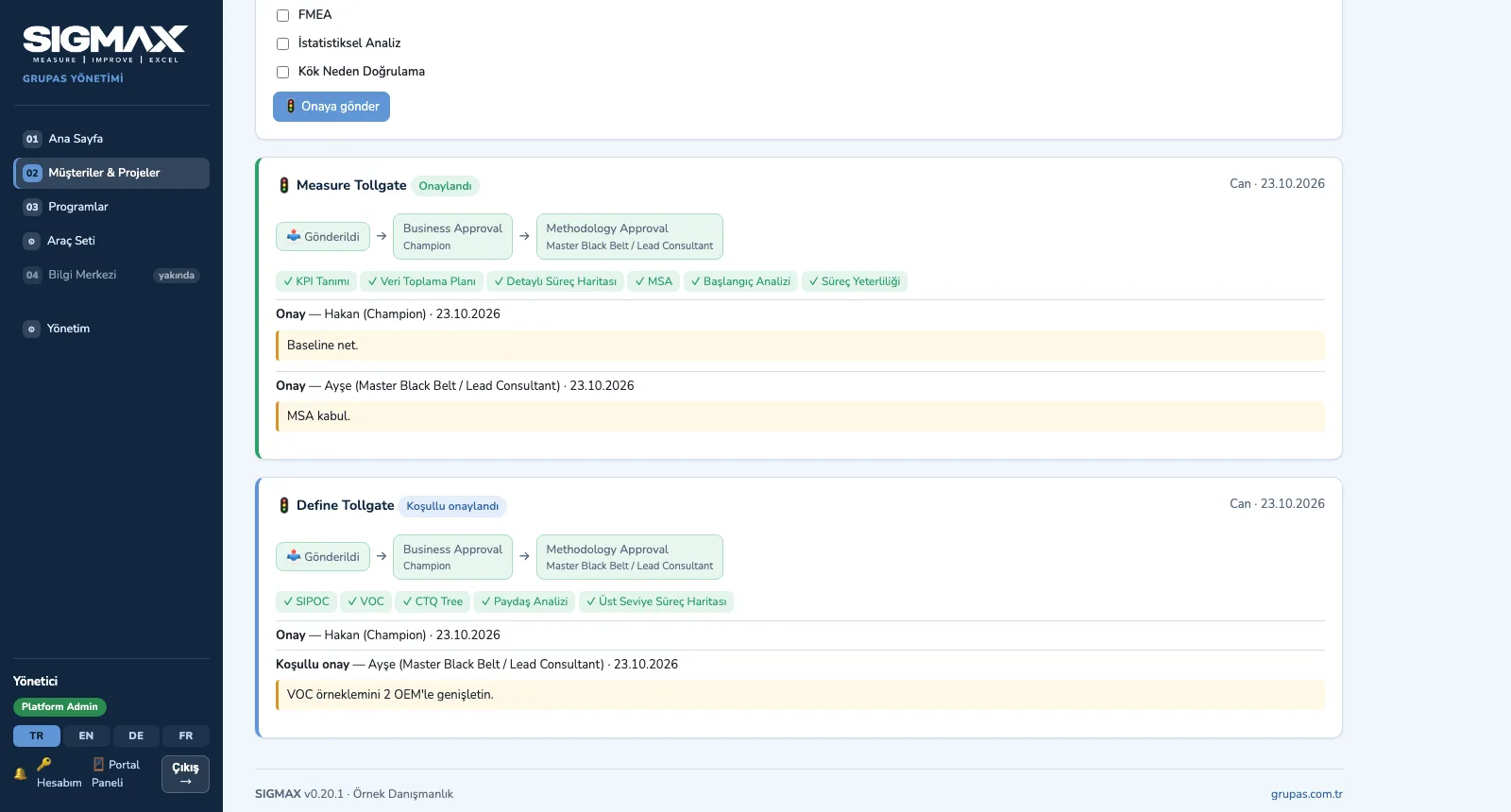
3. Submit to the tollgateSubmit with the checklist; business and methodology approvals are recorded with their comments.
DMAIC — Follow as a coach
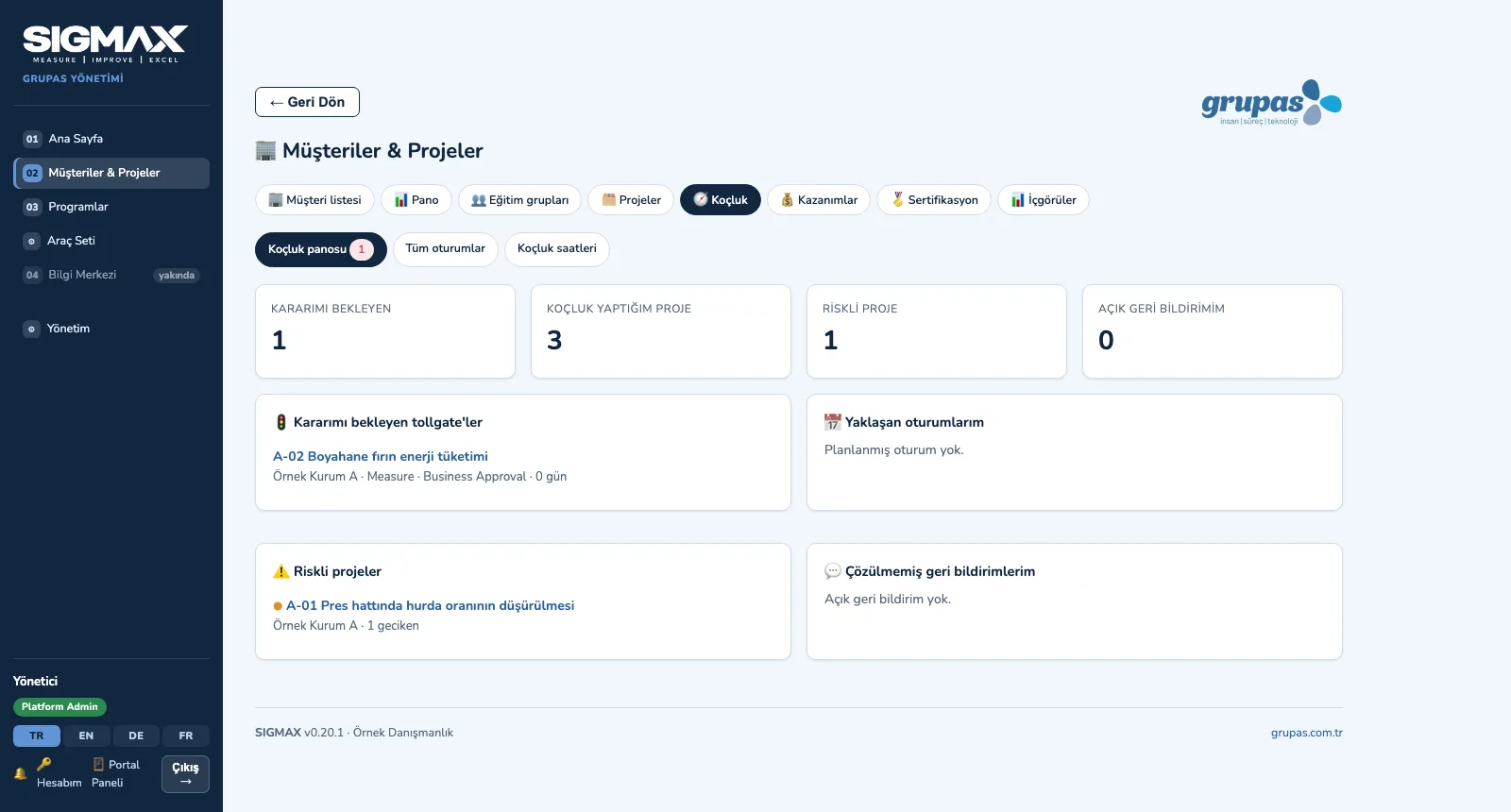
4. Follow as a coachTollgates awaiting your decision, upcoming sessions, projects at risk and open feedback.

DMAIC · Explore

TOOLS · Analyze

Tool Set and Statistics

Find the tool, read the guidance, calculate, save to the project.
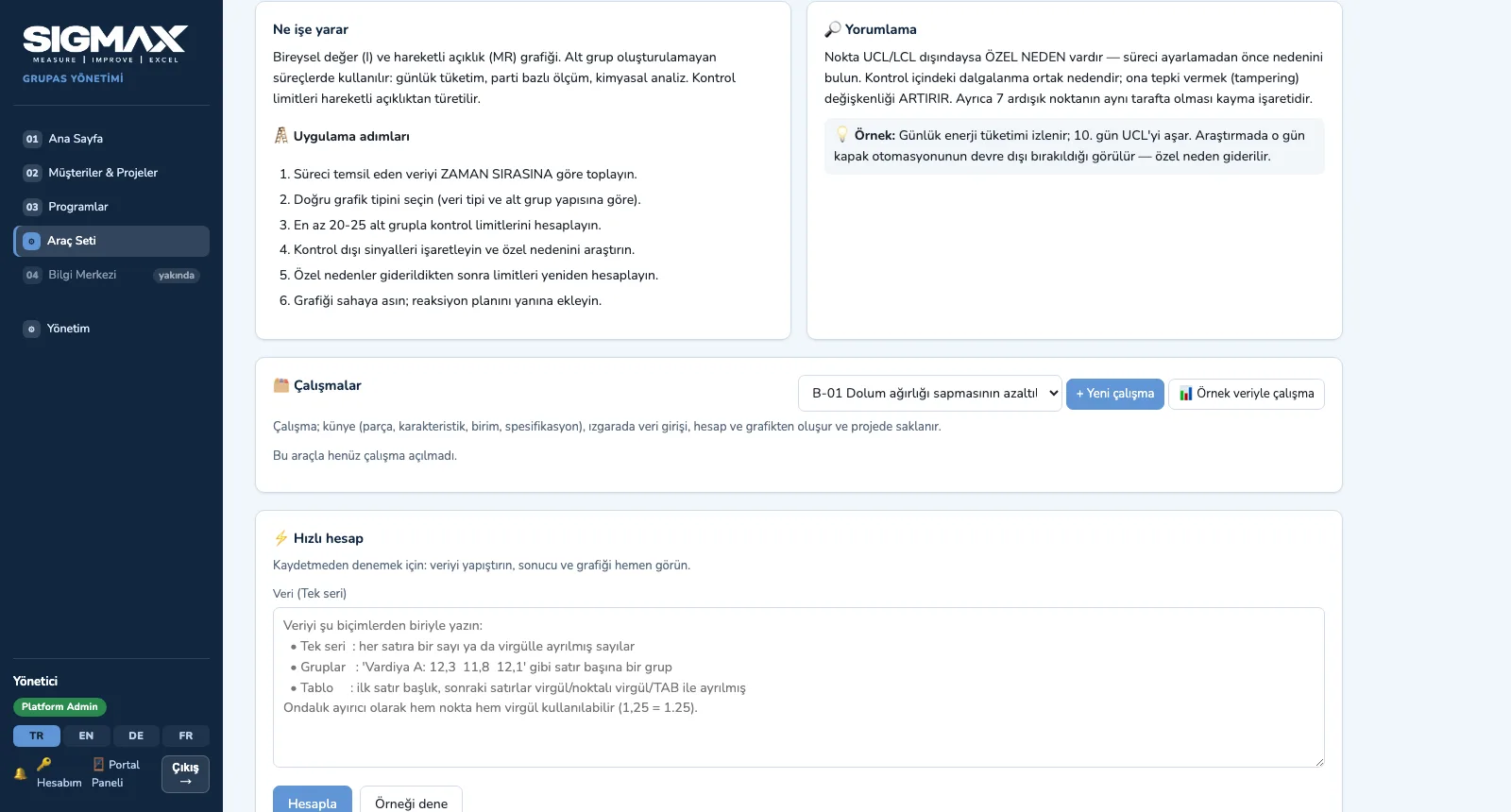
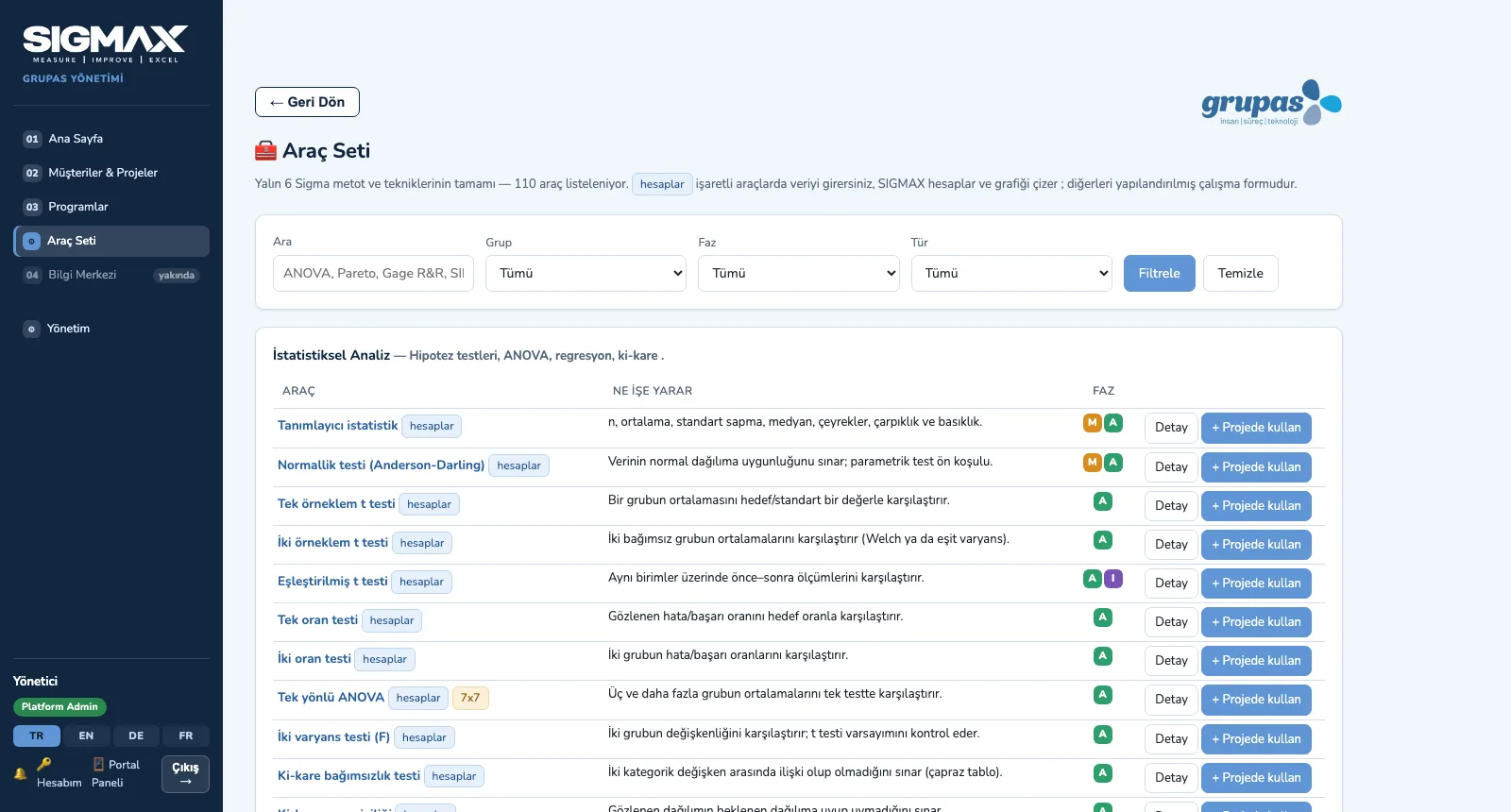
TOOLS — Find the tool
1. Find the toolFilter the 110 tools by group, phase and type; calculating tools are flagged.
TOOLS — Read the guidance
2. Read the guidanceWhat it is for, steps, interpretation and an example; add the tool to a project and open a study.
TOOLS — Enter the data, calculate
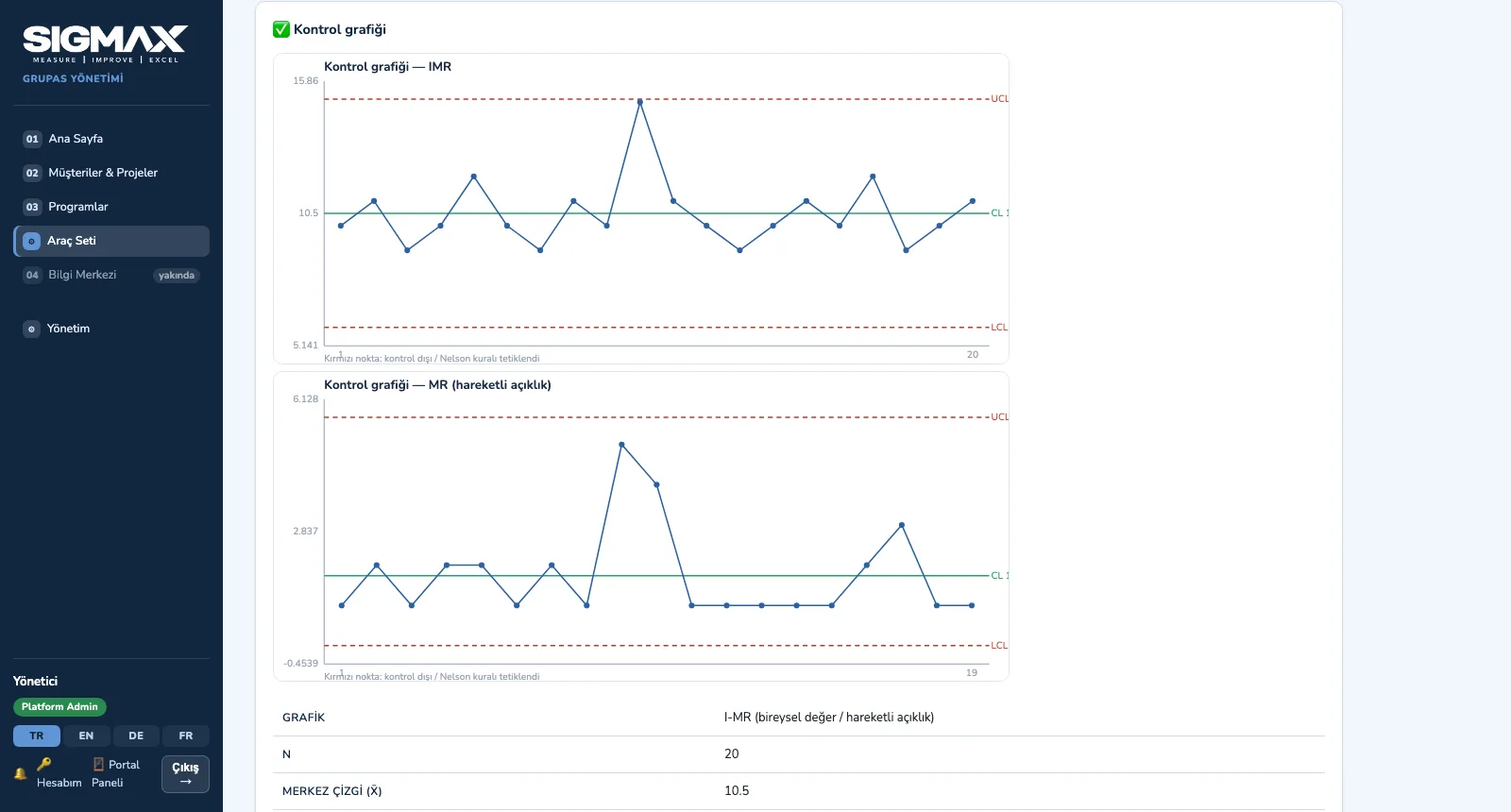
3. Enter the data, calculateThe result table and chart appear at once — e.g. an I-MR control chart with its control limits.
TOOLS — Save it to the project
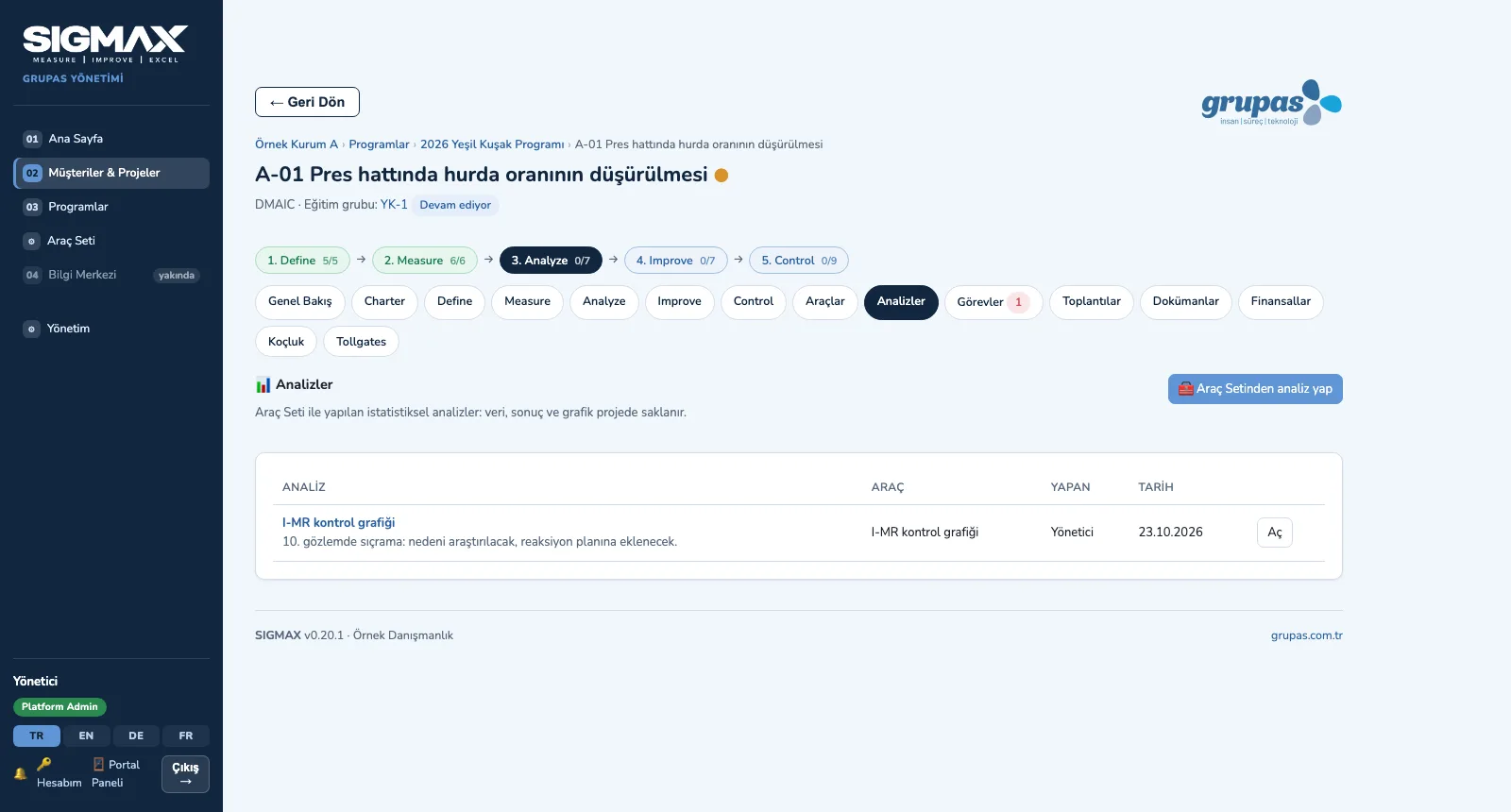
4. Save it to the projectThe analysis is saved with your comment in the project's Analyses tab; the team opens the charted report later.

TOOLS · Explore

VALUE · Validate

Benefits, Certification and Insights

Validate the benefit, tie the certificate to rules, show the result to management.
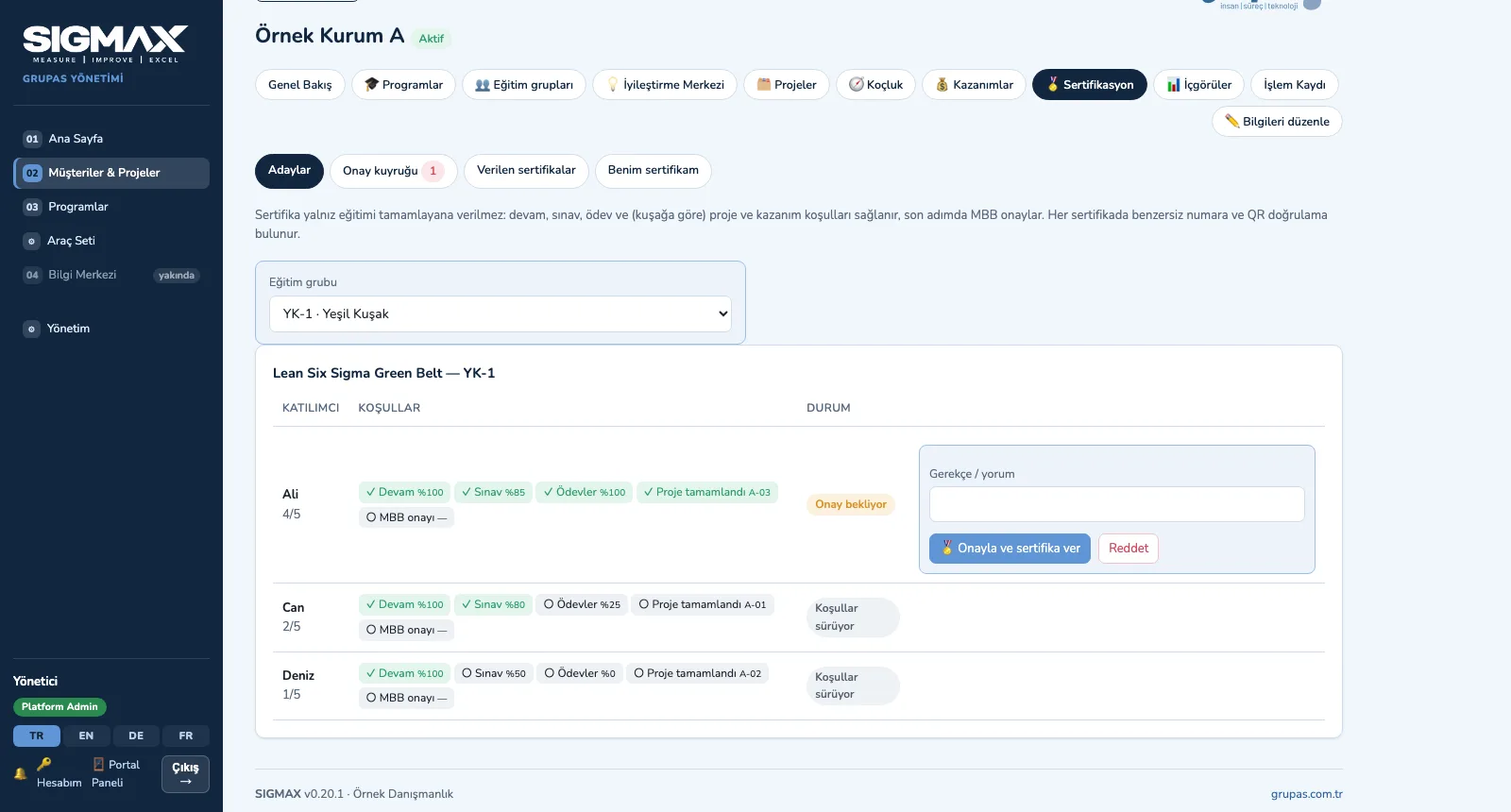
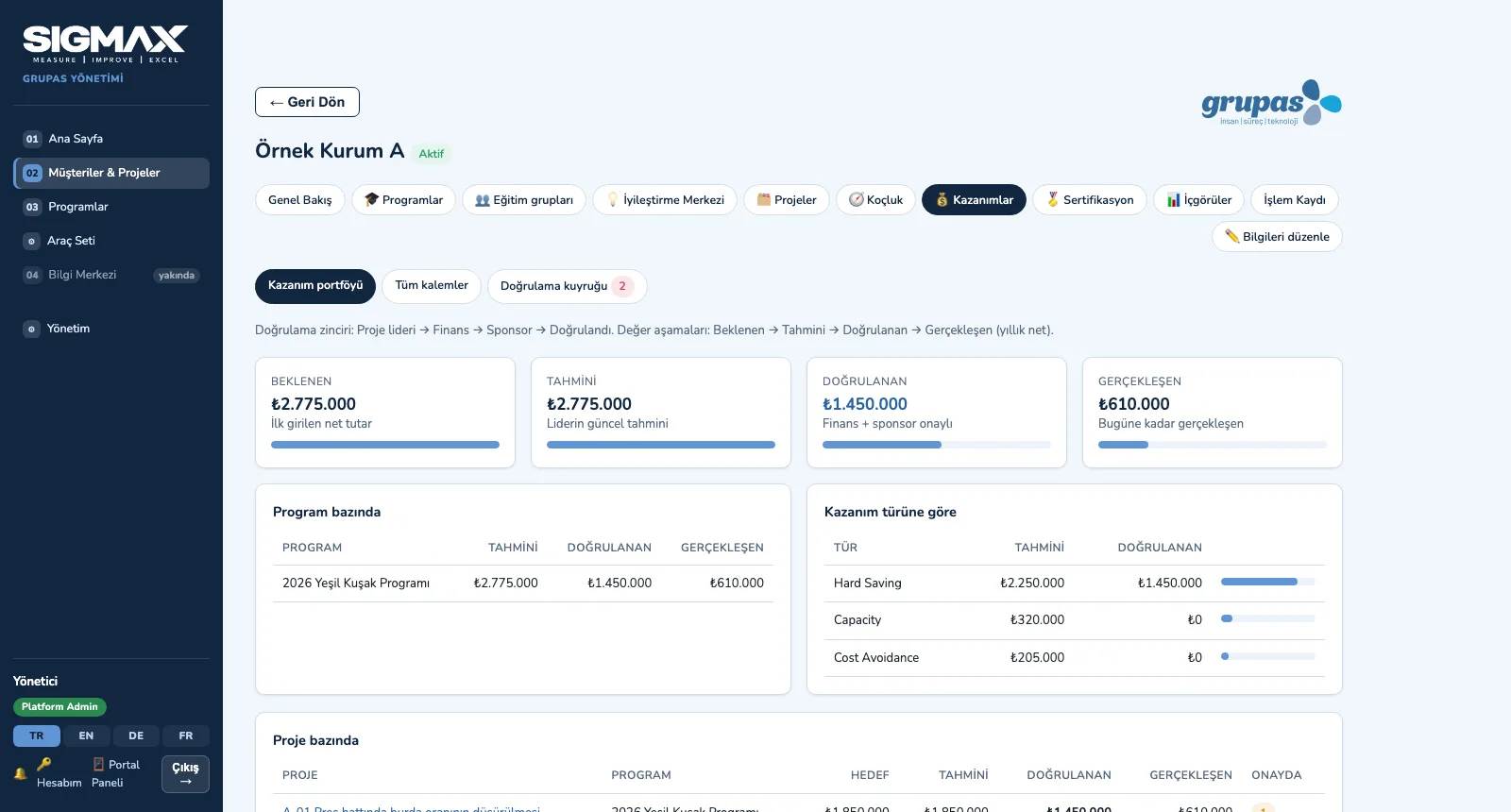
VALUE — Get the benefit validated
1. Get the benefit validatedExpected, estimated, validated and realized values; breakdown by program and type, and the validation queue.
VALUE — Follow certificate candidates
2. Follow certificate candidatesEach participant's rule status (e.g. 4/5); those meeting all automatic rules wait in the MBB approval queue.
VALUE — Certificate with QR code
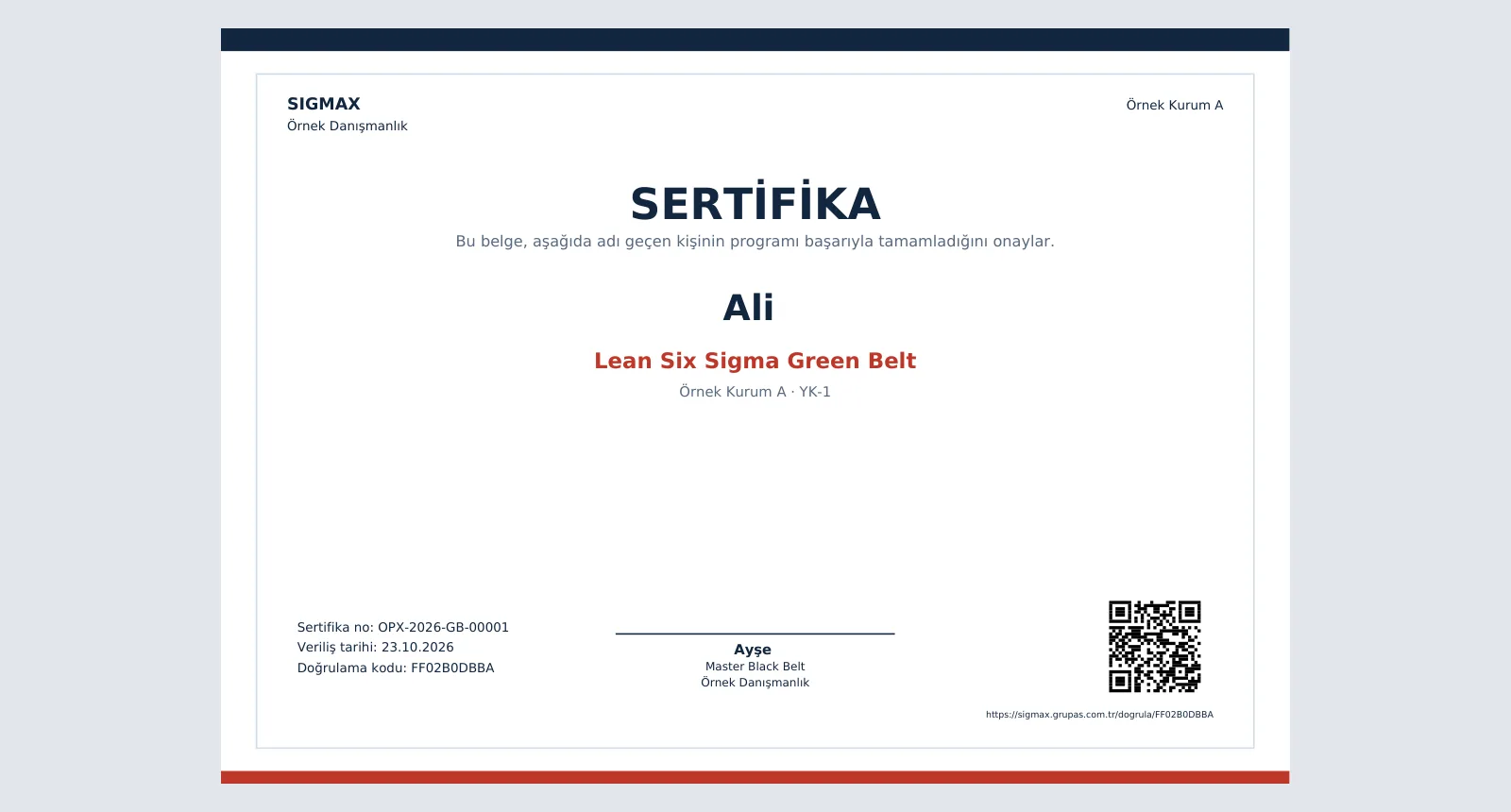
3. Certificate with QR codeWith MBB approval, a uniquely numbered PDF certificate with a QR code; the verification page is public.
VALUE — Manage with insights
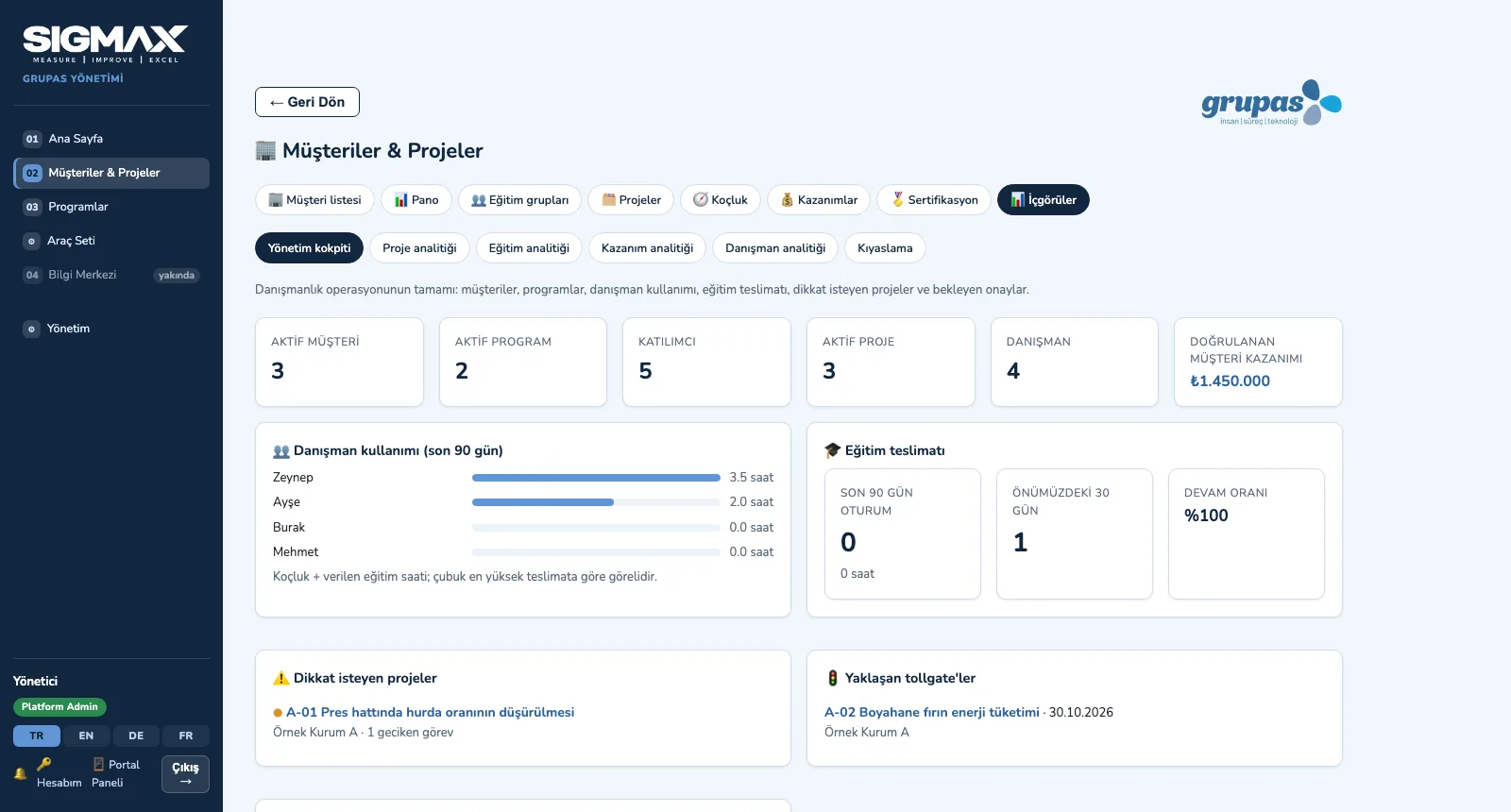
4. Manage with insightsActive clients, programs, participants and projects; consultant utilization, training delivery, projects needing attention and upcoming tollgates.

VALUE · Explore

See your program in SIGMAX

Write to us for a live walkthrough on sample data.

WhatsApp
GURU

GURU · SIGMAX assistant

Ask about features, licenses and Lean Six Sigma.

+90 538 390 29 78 info@grupas.com.tr
Hi, I'm GURU! I can answer your questions about SIGMAX and Lean Six Sigma (DMAIC, tollgates, belts, benefit validation).